
Are you an Android developer? Then, boy, do we have some exciting news for you! Imagine having a friendly coding companion right inside your Android Studio, always ready to help you out. Well, guess what? Android Studio has just introduced Studio Bot – your new best friend in the world of coding.
What Exactly is Studio Bot?
Studio Bot is like a smart, AI-powered assistant that lives inside your Android Studio. It’s designed to make your life as an Android developer easier and more efficient. It’s like having your personal coding expert right at your fingertips.
How Can Studio Bot Help You?
1. Generate Code: You can ask Studio Bot to generate pieces of code for you. Need to create a xml layout for a login screen, just ask !!
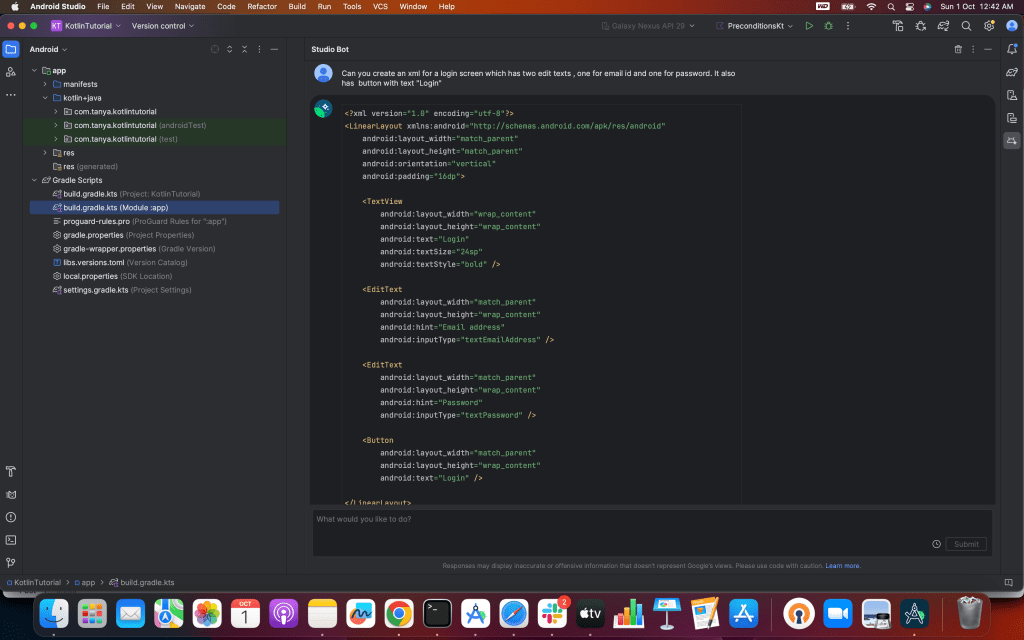
2. Add generated code with a click: Studio Bot displays smart actions next to the code it generates, which lets you quickly insert the code into the open editor, insert it into the Android Manifest, or even add required dependencies for popular libraries that are used in the answer.
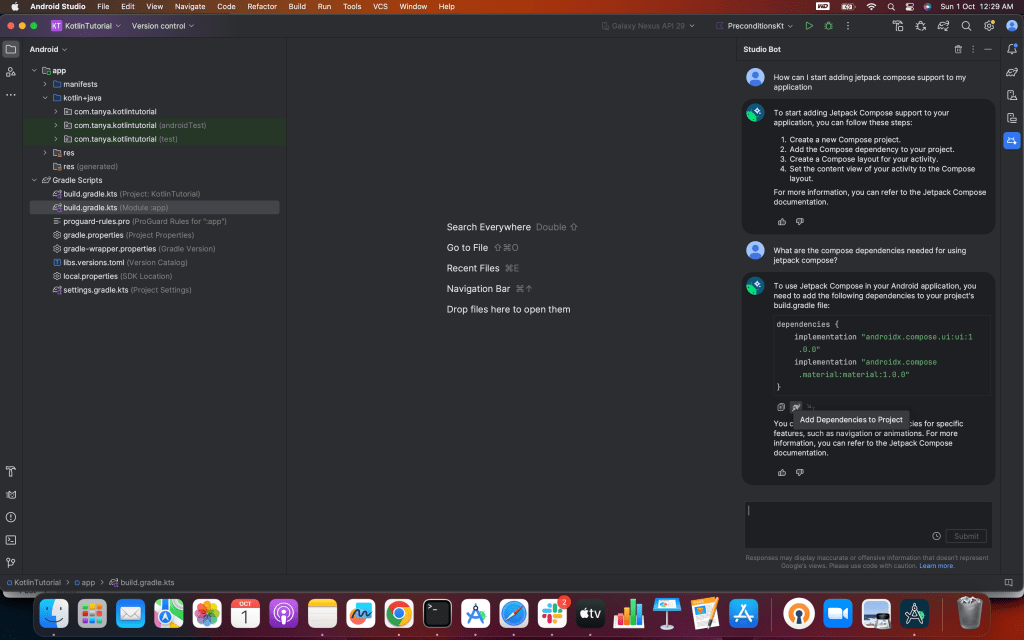
3. Find Resources: Studio Bot can help you find the right resources when you’re stuck. Looking to convert your xml to compose? It’s got your back.

4. Learn Best Practices: If you want to know the best way to do something in Android development, Studio Bot can guide you.
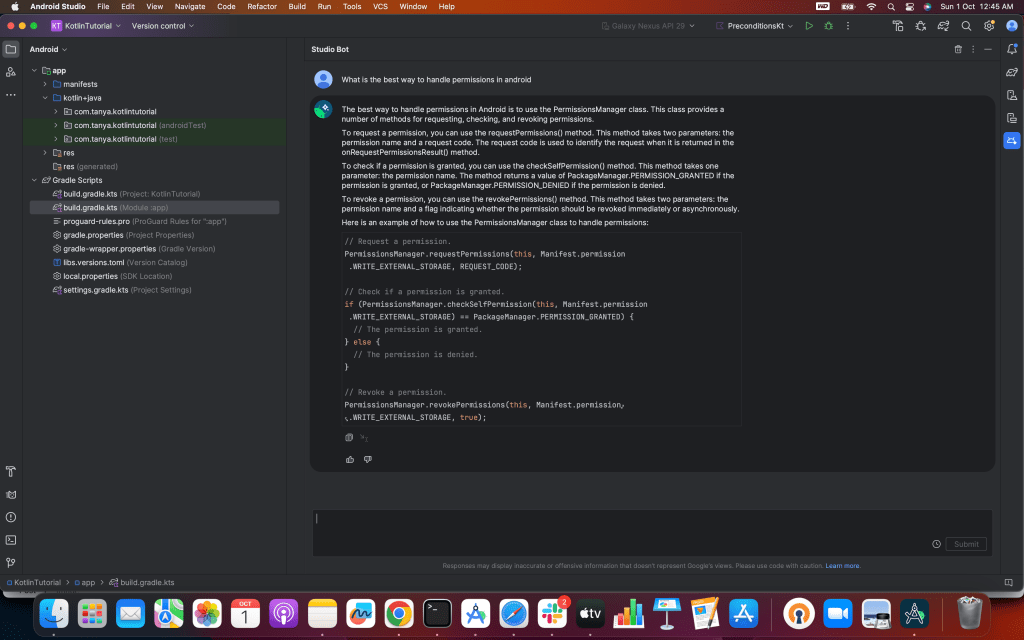
5. Save Time: No more digging through documentation or scouring the internet for answers. Studio Bot can provide quick solutions to your coding dilemmas.

6. “Ask Studio Bot” directly from your codebase: when you select text in the code editor, right-click and select the Ask Studio Bot action to populate the chat prompt with the selected code. From there you can decide whether or not to send the code—Studio Bot doesn’t send code without your explicit authorization. Ask Studio Bot is also available to help you troubleshoot warnings and errors in the code editor.

Privacy-conscious? You’ll be pleased to know that you don’t need to send your source code to Google to use Studio Bot. Your conversations with Studio Bot remain confidential, aligning with Google’s commitment to privacy.
But, here’s the thing – Studio Bot is still learning. It’s a bit like a clever but still-in-training apprentice. So, while it can be incredibly helpful, it’s a good idea to double-check the code and suggestions it gives you, just to be sure.
How to Get Started with Studio Bot
To meet Studio Bot, you’ll need to:
1. Download the Latest Android Studio: Make sure you have the latest canary version of Android Studio Iguana.
2. Open studio bot from View -> Tool Windows -> Studio Bot
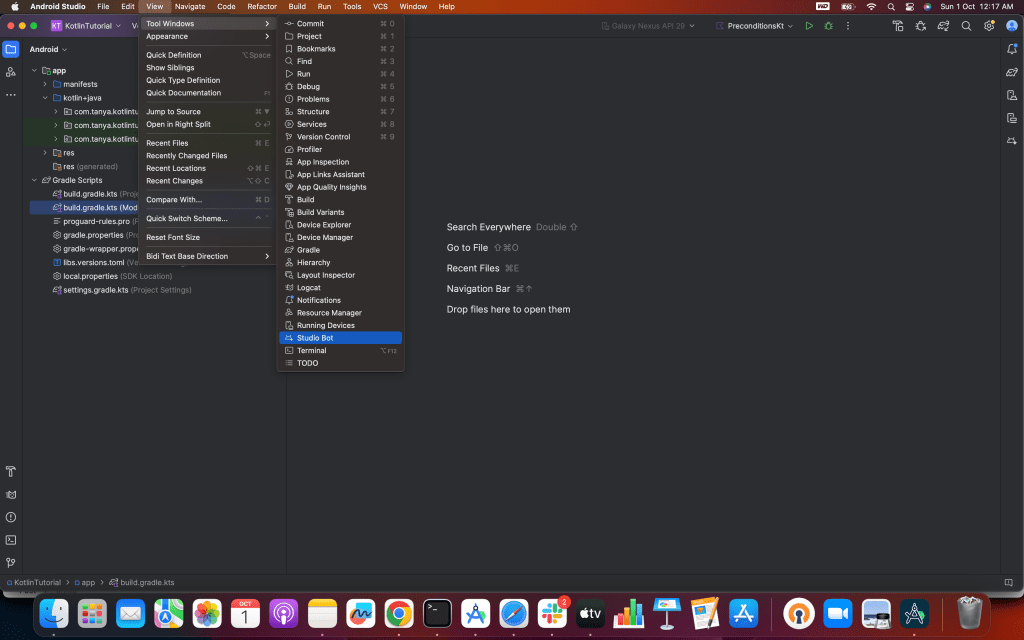
3. Sign In: Studio Bot will ask you to sign in with your Google account. Once you’re in, you can start using it.

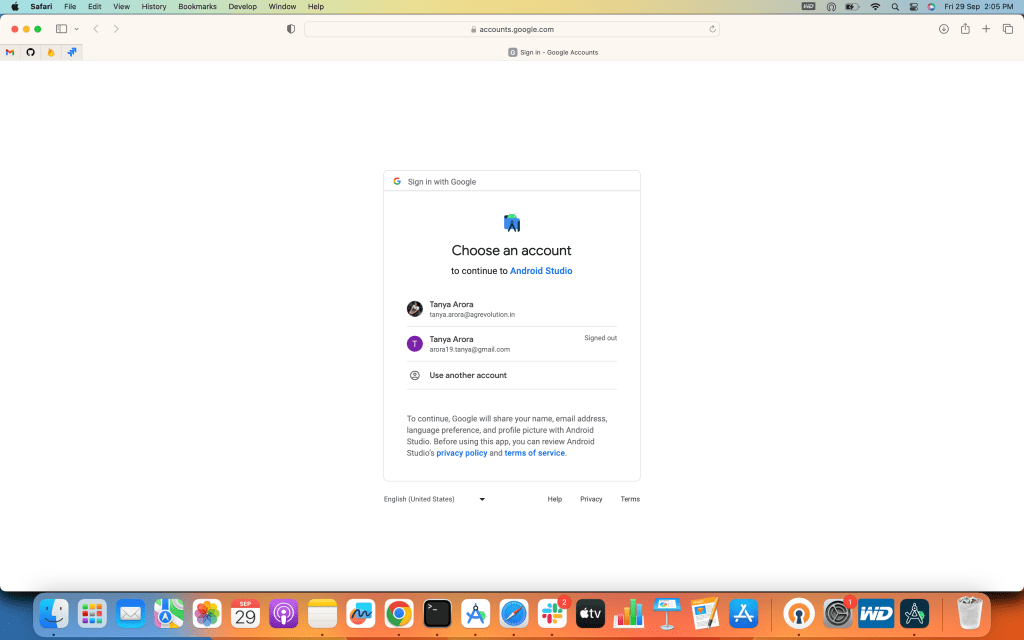
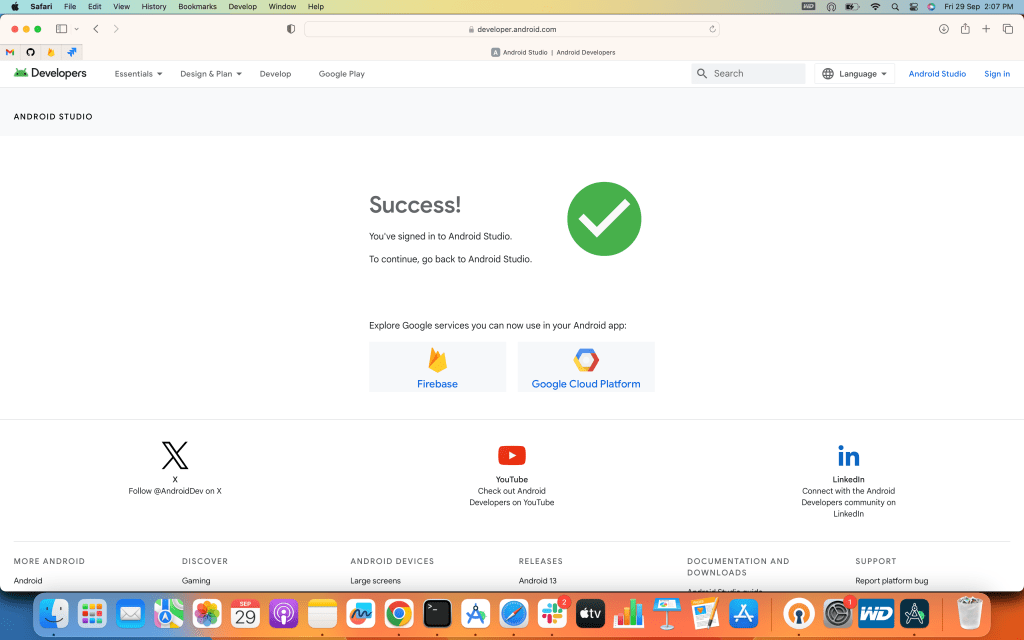

Note: It’s recommended to agree to share data with Google. This helps them understand how effective Studio Bot is and make it even better.
Some Tips for Talking to Studio Bot:
- Be clear and specific in your questions.
- Use simple language that Studio Bot can understand.
- If it doesn’t quite get what you’re asking, try rephrasing your question.
- Always review the suggestions it gives you.
Studio Bot is here to make your Android development journey smoother, more enjoyable, and a lot less frustrating. It’s like having a mentor who’s always there for you.
So, if you’re an Android developer, give Studio Bot a try, and see how it can supercharge your coding adventures. Happy coding!
That’s it for this article. Hope it was helpful! If you like it, please hit like.
Interested in discovering more tips and tricks for Kotlin-based Android app development? Explore a treasure trove of insights on our Visual Nuggets page. Click here to dive in!
 Tanya Tech Zone