
What is Apollo GraphQL?
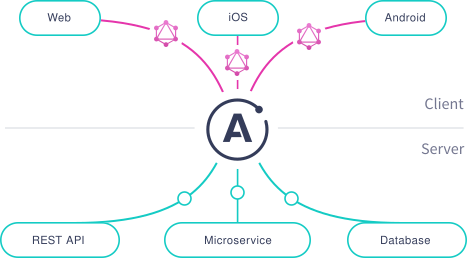
Apollo is a platform for building a unified graph, a communication layer that helps us manage the flow of data between our application clients (such as web and native apps) and our back-end services. At the heart of the graph is a query language called GraphQL.
Our graph sits between application clients and back-end services, facilitating the flow of data between them
Now let’s see how we can use Apollo Kotlin(formerly known as Apollo Android) in our applications to communicate with a GraphQl server.
Step 1: Configure our project
- Apply the apollo plugin in app’s build.gradle
plugins {
    id("com.apollographql.apollo3").version("3.8.2")
}
2. Add Apollo GraphQl dependency
dependencies {
    // ...
    implementation("com.apollographql.apollo3:apollo-runtime:3.8.2")
}
Note: At the time of writing this blog, latest version was 3.8.2. You can check the current version from this link.
Step 2: Add the GraphQl schema
Let’s use the same schema as an example as we used in the previous article
schema {
    query: Query
}
type Product {
    id: ID!
    name: String!
    description: String
    imageUrl: String
    active: Boolean!
    productVariants(product_Id: Float): [ProductVariant]
    brand: String
}
type ProductVariant {
    id: ID!
    product: ProductNode!
    attribute: String
    active: Boolean!
    inventory: Float
}
type Query {
    allProducts(id: Int, name: String, brand: String): [Product]
    allVariantsOfProduct(productId: Int): Product
}
Note: I am just using this schema as an example to explain the concepts. You will have to use the schema given by your backend team.
- Create a folder named graphql at app/src/main and then create folders as per your package name.
- Create a file named schema.graphqls at this location and copy the schema text you will get from backend
- Build our project after adding the schema so that you can write your queries.
app/src/main/graphql/com/example/tanya/schema.graphqlsNote: Make sure the schema has extension .graphqls and not .graphql
Step 3: Write our Query
Let’s see how a query needs to be written in android using allProducts query from the schema as an example
- Create a query file (eg. named allProducts.graphql) at the same location we created the schema.
- Add the query in our file
query AllProducts {
  allProducts {
    cursor
    hasMore
    products {
       id,
       name,
       description
       imageUrl
    }
  }
}
3. Build our project. Once we build the project, the system will generate a model class corresponding to our query (in our example AllProductsQuery) at the location
app/build/generated/source/apollo/service/com/example/tanya/AllProductsQuery.ktwhich will look something like this
public data class AllProductsQuery(): Query<AllProductsQuery.Data> {

  .....
  public data class Data(
      public val allProducts: AllProducts?
  ) : Query.Data
  ....
  public data class AllProducts(
      public val products: List<Product?>
  )
  ....
  public data class Product(
      public val id: String,
      public val description: Int,
      public val name: String,
      public val imageUrl: String?
 )
 ....
}
To get the list of products we will have to access allProductsQuery. data?.allProducts?.products
4. Now in our component classes, we can access the data using this model class
Step 4: Execute our Query
- Create a Apollo Client
import com.apollographql.apollo3.ApolloClient

val apolloClient = ApolloClient.Builder().httpMethod(HttpMethod.Get)
    .serverUrl("https://your-server-base-url.com/graphql")
    .build()
2. Execute our query using the .query method provided by the apolloClient
Query for our example will look like this:
lifecycleScope.launchWhenResumed {
    val response: AllProductsQuery.Data = try {
         apolloClient.query(AllProductsQuery()).execute()
    } catch (e: ApolloException) {
         Log.d("ProductList", "Failure", e)
         null
    }
}
Step 5: Update the UI from the response
- Get the list of data (products for us) from the response
val products= response?.data?.allProducts?.products?.filterNotNull() 2. Send the list to your adapter which will accept data of type AllProductsQuery.Product for us
class ProductListListAdapter(
    private val products: List<AllProductsQuery.Product>
) : RecyclerView.Adapter<ProductListAdapter.ViewHolder>() {
....
   override fun onBindViewHolder(holder: ViewHolder, position: Int){
        val product = products.get(position)
        holder.binding.name.text = product.name ?: ""
   }
....
}
Step 6: Filtering of Data
Let’s see how we can get a single product by id in our example
If we were using REST APIs, we would have asked the back-end team to create a new API for us. But, in our case we wouldn’t be needing that. We can use the same schema to write a query to get a single product without any added support from backend.
allProducts(id: Int, name: String): [Product]Query in the schema defines what are the parameters on which a query can be filtered. In allProducts query, products can be filtered on id and name like this
query AllProducts($id: String, $name: String) {
  allProducts {
    cursor
    hasMore
    products {
       id,
       name,
       description
       imageUrl
    }
  }
}
In Apollo Android, all the parameters on which we want to filter the data have to be prefixed with a dollar ($) sign.
Execute query for filtered products
1. Get product by id
apolloClient.getInstance().query(
    AllProductsQuery(
        id = Optional.Present(id)
    )
).execute()
2. Get product by name
apolloClient.getInstance().query(
    AllProductsQuery(
        name = Optional.Present(name)
    )
).execute()
Step 7: Error Handling in Apollo GraphQL APIs
When we execute a GraphQL operation, two types of errors can occur: Network errors and GraphQL errors
Network errors
In this case, GraphQL response wasn’t received because an error occurred while communicating with your GraphQL server.Some of the possible causes for this type of error could be:
- No internet connectionClient couldn’t get the response in a particular time so the request got timed outAn SSL error occurredThe server responded with a non-successful HTTP codeThe server didn’t respond with valid JSONThe response JSON doesn’t satisfy the schema and cannot be parsed.….
How to handle such errors?Network errors throw an ApolloException. To handle them, we can wrap our query in a try/catch block and then handle the exception based on the details we get in the exception.Example
try {
   val response = apolloClient.query(AllProductsQuery()).execute()
}
catch (e: ApolloException) {
   when (exception) {
      is ApolloNetworkException -> {
         if (exception.cause is SocketTimeoutException) {
            showToast("Network timeout")
          }
         else if(exception.cause is UnknownHostException){
            showToast("Check your internet connection")
          }
         else{
             showToast("Network error")
          }
         }
     is ApolloHttpException -> {
        showToast(exception.message.toString())
     }
     else -> {
        showToast("Unknown network error")
     }
   }
}
GraphQL errors
In this case, GraphQL response is received, and it contains a non-empty errors field. This means the server wasn’t able to completely process the query. The response might include partial data if the server was able to process some of the query.
The server response can look something like this:
{
  "data": {
    "product": {
      "name": "ABC"
    }
  },
  "errors": [
    {
      "message": "Error message",
      "locations": [
        {
          "line": 35,
          "column": 3
        }
      ],
      "path": [
        "variant"
      ]
    }
  ]
}
How to handle GraphQL errors?
Each object in the errors list contains a message, locations, path, extensions, nonStandardFields. We can use any on these fields to handle the user experience on the UI.
try {
   val response = apolloClient.query(AllProductsQuery()).execute()
   if(response.errors != null){
       response.errors?.getOrNull(0)?.message?.let{
            showToast(it)
       } ?: let{
            showToast("Network error is null)
       }
   }
   else if(response.data != null){
       bindData()
   }
   else{
       showToast("Network data is null)
}
catch (e: ApolloException) {
//Handle exceptions
....
}
That’s it for this article. Hope it was helpful!
Link to the first part of this series:
 Tanya Tech Zone